Preparing Smart Home Devices for Winter Power Outages (2026)
Winter power outages pose a significant challenge to smart homes. Many devices rely on a constant power supply and an active internet connection to function. When the grid goes down, your smart lights, thermostats, and security cameras can become useless. This guide outlines practical steps to keep your smart home operational and secure during an outage.
Understanding the Risks: Why Smart Homes Fail During Outages
The biggest misconception about smart home devices is that a built-in battery guarantees functionality during a power cut. This is often not true. Most smart devices, even those with batteries, depend on a functioning home network (Wi-Fi router, modem) and an active internet connection to communicate with each other and with their cloud services. When the power goes out, your router and modem lose power, cutting off communication.
The average winter power outage in the United States lasts 3.5 hours, but severe weather can extend this beyond 24 hours, according to the U.S. Department of Energy's Grid Modernization Initiative. This means you need solutions that last more than just a few minutes.
Step 1: Prioritize Essential Devices
Not every smart device needs backup power. Focus on what truly matters for safety, comfort, and communication during an outage.
- Heating: Smart thermostats (e.g., Google Nest Thermostat, 2026 model) control your furnace. If they lose power, your heating system might not work, even if the furnace itself has power.
- Lighting: Essential smart bulbs or light strips in high-traffic areas.
- Security: Smart locks, security cameras, and door/window sensors.
- Communication: Your smart home hub, Wi-Fi router, and modem.
- Refrigeration: Smart refrigerators, if you have one, to preserve food.
Step 2: Implement Uninterruptible Power Supplies (UPS)
UPS units provide short-term battery backup for electronic devices. They are crucial for maintaining your network and smart home hub.
- Network Equipment: Connect your Wi-Fi router, modem, and smart home hub (e.g., Samsung SmartThings Hub V4, 2026) to separate UPS units or a single, larger unit. A typical UPS for network gear costs between $80 and $200 and can provide 1-3 hours of power, enough to bridge short outages or allow for a graceful shutdown.
- Smart Home Hub: The Samsung SmartThings Hub V4 (2026) operates best between 32°F and 104°F (0°C to 40°C). Keeping it powered and within this temperature range is vital for its function.
- Thermostats: Some smart thermostats have internal batteries, but many draw power from your HVAC system. A small UPS or a dedicated power bank can keep them running. A 10,000 mAh portable power bank can recharge a Google Nest Thermostat (2026 model) up to 15 times, according to Anker Innovations' 2026 product specifications.
Step 3: Invest in Portable Power Stations or Home Battery Storage
For longer outages, you need more substantial power solutions.
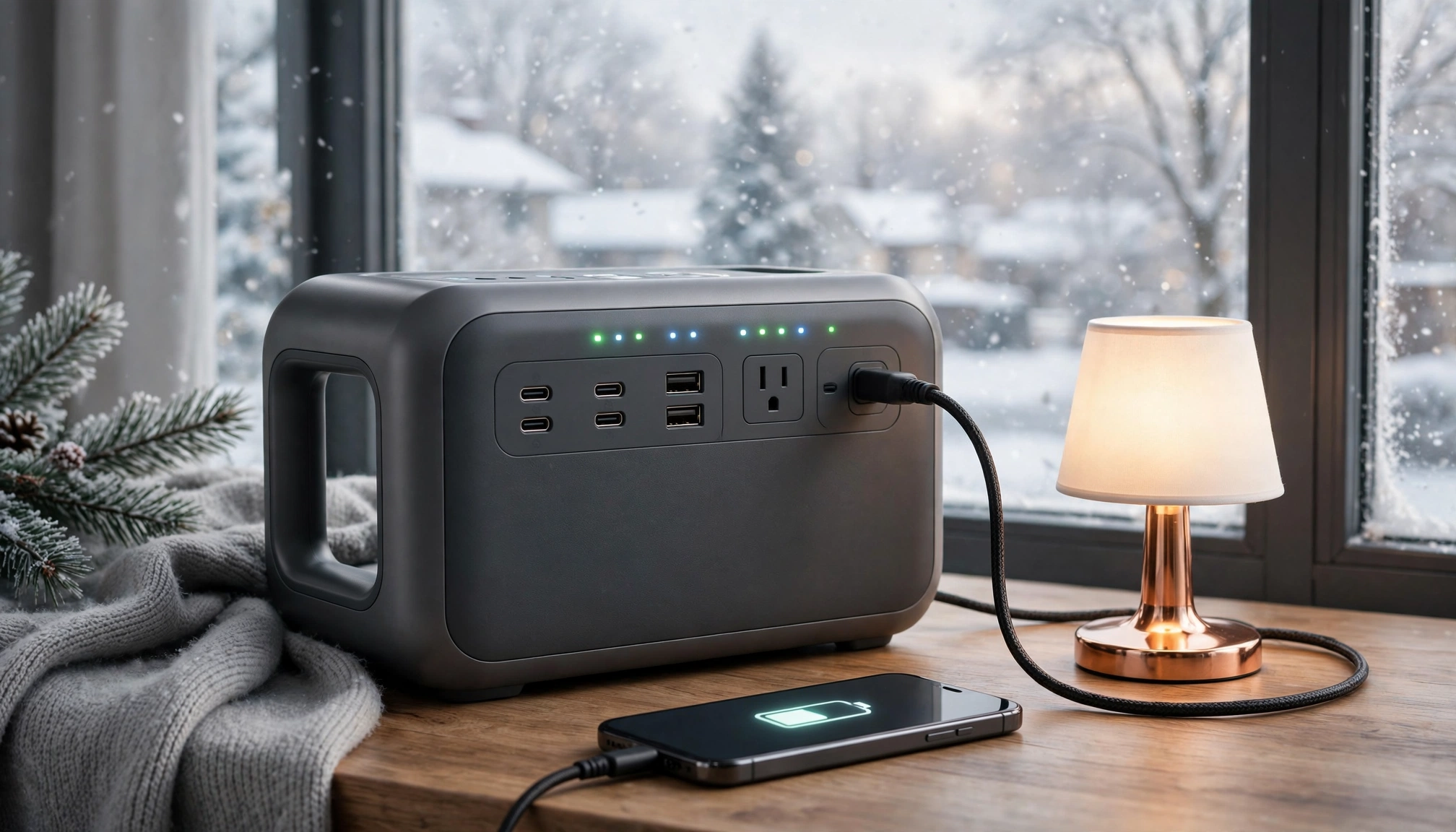
- Portable Power Stations: These are large, rechargeable batteries with AC outlets, DC ports, and USB ports.
- A 1500-watt portable power station, like the Jackery Explorer 1500 Pro (2026), costs about $1,499 USD. It can power a smart refrigerator for 10-12 hours. This is ideal for keeping essential appliances running for a day or so.
- For smaller devices, a 500-watt station (around $500-$700) can power your network, hub, and charge phones for several days.
- Residential Solar Battery Storage: For comprehensive backup, consider a home battery system.
- The Tesla Powerwall 3 (2026 model) offers 13.5 kWh capacity. This can power essential smart home devices and some appliances for 1-3 days, depending on your usage. These systems integrate with solar panels, providing continuous charging during daylight hours. Installation costs vary but typically range from $10,000 to $15,000 before incentives.
Portable Power Station
Step 4: Configure Local Control and Offline Modes
Many smart devices rely on cloud services, which means they need an active internet connection. Some devices offer local control, allowing them to function without the internet.
- Zigbee/Z-Wave Devices: Devices using these protocols often communicate directly with your smart home hub. If your hub has backup power, these devices might still work locally. Check your hub's settings for local processing capabilities.
- Matter/Thread Devices: Newer standards like Matter and Thread are designed with local control in mind. Ensure your devices and hub support these protocols for better offline functionality.
- Offline Modes: Some smart lighting systems (e.g., Philips Hue) allow you to set a default "power-on behavior." This means when power is restored, the lights come on to a specific brightness and color, rather than staying off or cycling through colors.
- Manual Overrides: Know how to manually operate your smart devices. Can you open your smart lock with a key? Can you adjust your thermostat directly on the unit?
Step 5: Optimize Device Power Consumption
Reducing power consumption extends the life of your battery backups.
- Wi-Fi 6E (802.11ax): If you have devices and a router supporting Wi-Fi 6E, you can see power savings. Devices connected via Wi-Fi 6E consume up to 30% less power in standby mode compared to older Wi-Fi 5 (802.11ac) devices, according to the IEEE 802.11 Working Group's 2026 standards update.
- Disable Non-Essential Features: Turn off motion detection on cameras you don't need during an outage. Reduce screen brightness on smart displays.
- Unplug Non-Essential Devices: Disconnect smart plugs, chargers, and other devices that don't need to run during an outage.
Step 6: Maintain Your Backup Systems
Regular maintenance ensures your backup power is ready when you need it.
- Test UPS Units: Every 3-6 months, unplug your UPS from the wall to ensure it switches to battery power and can sustain your connected devices. Replace UPS batteries every 3-5 years.
- Charge Power Banks: Keep all portable power banks and power stations fully charged. Check them monthly.
- Generator Maintenance: If you have a standby generator, schedule annual maintenance with a certified technician. Test it monthly under load.
Step 7: Create an Emergency Communication Plan
Even with backup power, internet access might be limited.
- Cellular Backup: Some smart home hubs offer cellular backup for critical alerts. This typically requires a subscription.
- Satellite Communicators: For remote areas, a satellite messenger (e.g., Garmin inReach) provides reliable two-way communication and SOS capabilities, independent of cell towers.
- Battery-Powered Radios: A NOAA weather radio keeps you informed of local conditions and emergency broadcasts.
Device-Specific Considerations
| Device Type | Primary Power Source | Outage Impact | Recommended Backup Strategy