Top Home Office Ergonomics for 2026 Remote Workers
Working from home has become a permanent fixture for many, and with it, the need for a properly set up workspace. In 2026, we see a clear trend: musculoskeletal issues like neck, back, and wrist pain affect about 65% of remote workers, up from 58% in 2022. This isn't just about comfort; it impacts productivity and long-term health. Good ergonomics isn't a luxury; it's a necessity. It means setting up your workspace to fit your body, not forcing your body to fit the workspace.
The biggest mistake people make is thinking a single expensive chair fixes everything. It doesn't. A truly ergonomic setup involves several interconnected components working together to support your body throughout the workday.
1. The Ergonomic Office Chair: Your Foundation
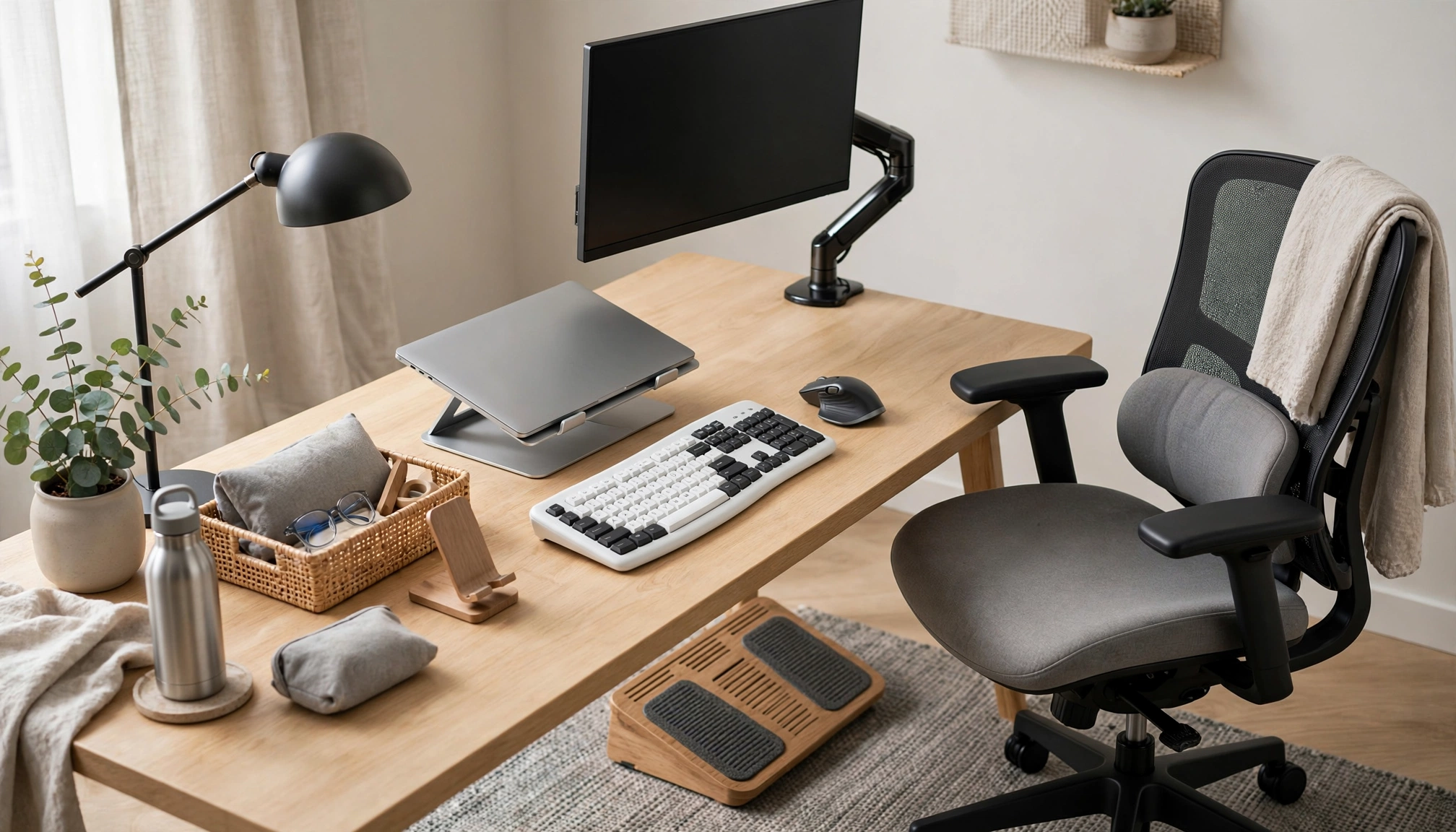
Your chair is the cornerstone of your ergonomic setup. It needs to support your spine's natural curve, allow your feet to be flat on the floor (or a footrest), and keep your arms at a comfortable height.
What to look for:
- Adjustable Lumbar Support: This is critical. It should move up and down, and in and out, to fit the curve of your lower back.
- Seat Height Adjustment: Your feet need to be flat on the floor, with your knees at about a 90-degree angle. If your desk isn't adjustable, your chair must be.
- Seat Depth Adjustment: The seat pan should allow 2-4 inches (5-10 cm) between the front edge of the seat and the back of your knees. This prevents pressure on your circulation.
- Armrests: These should adjust in height, depth, and pivot. They support your forearms, taking pressure off your neck and shoulders. When typing, your forearms should be parallel to the floor.
- Recline and Tilt: A good chair lets you recline slightly and lock the tilt, allowing for micro-movements throughout the day.
- Material: Breathable materials like mesh are often better for long hours, especially in warmer climates.
High-quality ergonomic chairs from brands like Herman Miller or Steelcase cost, on average, $1,250 in 2026. Premium models can reach $2,500. While this is a significant investment, it's often cheaper than chronic pain treatment. Consumer Reports often publishes ratings on office chairs, which can guide your decision Consumer Reports - Office Chair Ratings.
Practical Tip: Spend at least 30 minutes sitting in any chair you consider buying. Adjust every knob and lever. If possible, rent or borrow one for a day.
2. Standing Desk or Converter: Dynamic Posture
Sitting all day is detrimental to health. A standing desk or converter lets you alternate between sitting and standing, which is crucial for reducing back pain and improving circulation. The National Institutes of Health (NIH) emphasizes the benefits of varied postures at computer workstations.
Options:
- Full Standing Desk: These are height-adjustable desks, often motorized, that let you switch between sitting and standing with a button press. They offer the most seamless transition.
- Standing Desk Converter: These units sit on top of your existing desk. They lift your monitor and keyboard/mouse to standing height. They are a more affordable option and work well if you already have a desk you like.
- Height Range: For standing, your elbows should be at a 90-degree angle, with your forearms parallel to the floor, just like when sitting. A good converter offers 15-20 inches (38-51 cm) of height adjustment.
- Stability: When extended, the unit should be stable, with no wobble.
- Work Surface Size: Ensure it has enough space for your monitor(s), keyboard, mouse, and any other essentials.
A standing desk converter typically costs between $200 and $450. Full standing desks vary widely, from $300 for basic manual models to over $1,000 for motorized, programmable versions.
Practical Tip: Start with short standing intervals (15-30 minutes) and gradually increase. Don't stand for hours straight; alternate frequently.
3. Monitor Placement: Eye-Level Comfort
Incorrect monitor height is a primary cause of neck and shoulder strain. Your monitor needs to be at the right height and distance.
Key Principles:
- Eye Level: The top of your screen should be at or slightly below eye level. This means your gaze falls naturally to the center of the screen without tilting your head up or down.
- Arm's Length Distance: Sit back in your chair and extend your arm. Your fingertips should just touch the screen. This distance reduces eye strain.
- Monitor Arm: An adjustable monitor arm is often the best solution. It provides at least 10 inches (25 cm) of vertical adjustment, allowing precise positioning. It also frees up desk space.
- Multiple Monitors: If you use two monitors, place the primary one directly in front of you. If both are used equally, center them, so the seam is in the middle.
A good quality monitor arm costs $50-$150, depending on whether it supports one or two monitors and its range of motion.
Practical Tip: If you don't have a monitor arm, use books or risers to get the screen to the correct height. Avoid craning your neck.
4. Ergonomic Keyboard and Mouse: Wrist & Hand Health
Your input devices are where repetitive strain injuries often start. Standard keyboards and mice force your hands and wrists into unnatural positions.
Ergonomic Keyboard Features:
- Split Design: Separates the keyboard into two halves, allowing your hands to rest naturally at shoulder width.
- Tent Design: Raises the middle of the keyboard, reducing pronation (palms facing down) of the wrists.
- Negative Tilt: Some keyboards allow the front edge to be slightly higher than the back, keeping your wrists straight.
- Key Travel: Keys should have good tactile feedback without requiring excessive force.
- Vertical Mouse: Positions your hand in a "handshake" grip, reducing forearm twisting.
- Trackball Mouse: Moves the cursor with your thumb or fingers, keeping your hand stationary. This reduces wrist movement.
- Size and Shape: The mouse should fit your hand comfortably, allowing your fingers to rest naturally on the buttons.
Ergonomic keyboards and mice typically cost between $70 and $180 each. This is a small investment compared to the cost of treating carpal tunnel syndrome or other repetitive strain injuries.
Practical Tip: Experiment with different types. What feels good to one person might not for another. Pay attention to how your wrist and forearm feel after an hour of use.
5. Lighting and Environment: Beyond the Desk
Ergonomics extends beyond your immediate workstation to the overall environment.
- Lighting: Natural light is best. Position your desk to avoid glare on your screen and direct light in your eyes. Use task lighting (a desk lamp) to illuminate your work area without causing reflections. The Occupational Safety and Health Administration (OSHA) provides guidelines on proper lighting.
- Temperature: The recommended ambient temperature for a comfortable home office is between 68-72°F (20-22°C). This range, specified by the American Society of Heating, Refrigerating and Air-Conditioning Engineers (ASHRAE) 2026 guidelines, helps maintain focus and comfort.
- Noise: Minimize distractions. Use noise-canceling headphones if necessary.
- Air Quality: Ensure good ventilation. Consider a small air purifier if you have allergies or pets.
6. Movement and Breaks: The Missing Link
Even the most perfectly set up ergonomic workstation won't prevent discomfort if you sit or stand rigidly for hours. Regular movement is non-negotiable.
- Micro-breaks: Every 20-30 minutes, take 30-60 seconds to stretch, look away from your screen (20-20-20 rule: every 20 minutes, look at something 20 feet away for 20 seconds), or simply shift your posture.
- Scheduled Breaks: Every 60-90 minutes, take a 5-10 minute break. Stand up, walk around, get water, do some light stretches.
- Exercise: Incorporate regular physical activity into your daily routine. Strong core muscles support your back, and overall fitness improves your body's resilience to static postures.
Ergonomic Setup Comparison
| Component | Key Features | Average 2026 Cost (USD) | Primary Benefit |
|---|---|---|---|
| Ergonomic Chair | Adjustable lumbar, seat height/depth, armrests, recline | $1,250 | Spinal support, proper posture, reduced back pain |
| Standing Desk/Converter | 15-20 inches (38-51 cm) height adjustment, stability | $200 - $450 (converter) | Dynamic posture, improved circulation, reduced fatigue |
| Monitor Arm | 10+ inches (25+ cm) vertical adjustment, VESA compatible | $50 - $150 | Correct eye-level screen, reduced neck strain |
| Ergonomic Keyboard | Split, tented, negative tilt, responsive keys | $70 - $180 | Reduced wrist pronation, improved hand comfort |
| Ergonomic Mouse | Vertical, trackball, proper size/shape | $70 - $180 | Reduced wrist twisting, prevention of RSI |
Real-World Trade-offs
- Cost vs. Health: While ergonomic equipment can be expensive upfront, the long-term costs of chronic pain, lost productivity, and medical treatments often far outweigh the initial investment. Consider it an investment in your health and career longevity.
- Learning Curve: Switching to an ergonomic keyboard or mouse can feel awkward initially. Give yourself a week or two to adapt. Your body needs time to adjust to new, healthier postures.
- Space: A standing desk or multiple monitors require more space. Assess your home office layout before purchasing.
- Personal Preference: Ergonomics isn't one-size-fits-all. What works for one person might not work for another. Be prepared to try different options and make adjustments.
Final Verdict & Practical Takeaways
The top home office ergonomics for 2026 remote workers are about creating a dynamic, supportive environment that adapts to your body, not the other way around. Don't fall into the trap of thinking one piece of expensive gear solves everything. Instead, focus on these practical takeaways:
- Invest in an adjustable chair: Prioritize lumbar support, seat depth, and armrest adjustability.
- Incorporate movement: Use a standing desk or converter, and take frequent micro-breaks and longer scheduled breaks.
- Optimize monitor height: The top of your screen should be at eye level, about an arm's length away. A monitor arm helps immensely.
- Protect your hands and wrists: Use an ergonomic keyboard and mouse that keep your wrists straight and comfortable.
- Control your environment: Pay attention to lighting, temperature (aim for 68-72°F or 20-22°C), and noise levels.
- Listen to your body: If something hurts, adjust it. Don't push through discomfort.