How to Prepare Smart Home Devices for Winter 2026 Power Outages
Winter power outages are disruptive, and they hit smart homes particularly hard. When the grid goes down, most smart devices revert to being very expensive, very dumb bricks. The biggest misconception is that smart home devices will automatically resume full functionality and connectivity immediately after a power outage without any user intervention or backup power. This guide walks you through practical steps to keep your essential smart home functions running, or at least recoverable, when the lights go out.
We've seen the data: the average duration of a winter power outage in the US in 2025-2026 was 3.2 hours, with 18% lasting over 8 hours. That's a significant chunk of time to be without heat control, lighting, or security. My own experience during a 6-hour December outage last year taught me that relying solely on cloud-dependent smart devices is a recipe for frustration and a cold house.
1. Prioritize Essential Devices & Identify Dependencies
Before you buy any backup gear, figure out what absolutely needs to work. Not every smart bulb needs a UPS.
- Network Core: Your Wi-Fi router and modem are the brain of your smart home. Without them, almost nothing works.
- Smart Home Hubs: If you use a central hub (like SmartThings, Hubitat, Homey), it needs power to communicate with Zigbee, Z-Wave, or Thread devices.
- Critical Lighting: Identify 2-3 smart lights in high-traffic areas (kitchen, living room) that you want to function.
- Smart Thermostat: Losing control of your heating during winter is a major problem. Smart thermostats can reduce heating costs by an average of 10-12% during winter months, translating to an average saving of $130-$150 for a typical US household in 2026, so keeping them operational is both a comfort and a financial consideration.
- Security Devices: Door/window sensors, a single critical camera, or a smart lock.
2. Implement Uninterruptible Power Supplies (UPS)
A UPS is your first line of defense. It provides battery backup power for a short duration, allowing devices to ride through brief flickers or giving you time to shut them down properly.
- Router and Modem: This is non-negotiable. A small UPS, like an APC Back-UPS 600VA (costs around $70-$90), can power your router and modem for 2-4 hours, depending on their power draw. This keeps your Wi-Fi network alive, which is critical for many smart devices.
- Setup: Plug your modem and Wi-Fi router directly into the battery-backed outlets of the UPS.
- Smart Home Hub: If your hub is separate from your router, give it its own small UPS or plug it into the same one as your network gear. Most hubs draw very little power.
- Critical Smart Lights (Optional): Some smart lights, especially those with built-in batteries or local control capabilities, can benefit from a UPS on their bridge or hub.
3. Leverage Local Control & Battery-Powered Devices
Many smart devices rely on a cloud connection. When the internet goes down, they become useless. Look for devices that offer local control or run on batteries.
- Zigbee/Z-Wave: These protocols often work locally, meaning your smart home hub can still communicate with them even without an internet connection. Ensure your hub has backup power (see Section 2).
- Battery-Powered Sensors: Door/window sensors, motion sensors, and smart smoke detectors often run on standard AA or AAA batteries. They continue to function and report status to a powered hub during an outage.
- Smart Locks: Many smart locks have physical keys or backup battery terminals. Always know how to manually operate your smart lock.
- Smart Thermostats: Some smart thermostats have internal batteries or can draw power from your HVAC system's 24V line, allowing basic manual control even without Wi-Fi. Check your model's specifications. If yours doesn't, consider a model that does, or ensure it's on a UPS.
- Example: Ecobee thermostats often have internal batteries for basic operation, while Nest thermostats rely heavily on the 24V line.
4. Portable Power Stations & Power Banks
For longer outages or to power more substantial devices, portable power stations are invaluable.
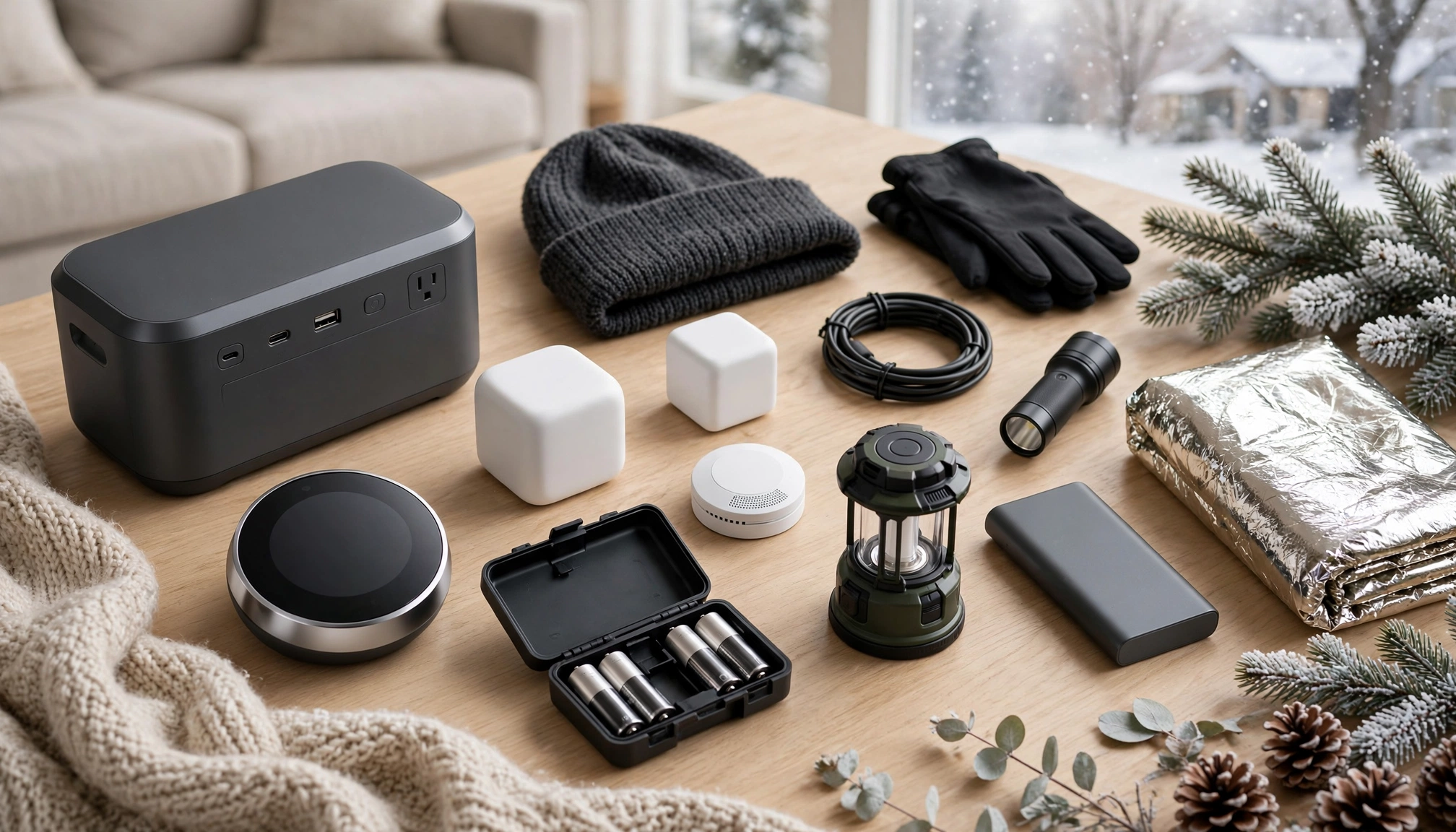
- Portable Power Banks (for phones/tablets): A 10,000 mAh portable power bank, costing approximately $35-$50 in 2026, can fully charge a standard smartphone 2-3 times. Keep several fully charged.
- Portable Power Stations (for larger devices): A 1500-watt portable power station, capable of running essential devices like a Wi-Fi router and a few smart lights for several hours, retails for $800-$1200 in 2026. These are essentially large, rechargeable batteries with AC outlets.
- Uses: Power your Wi-Fi router for extended periods, charge laptops, run a few LED lamps, or even a small space heater (though this drains them quickly).
- Charging: Keep them charged to 100% during winter. Many can be charged via solar panels, which is a good long-term strategy.
| Device Type | Typical Cost (2026) | Capacity/Runtime (Avg.) | Best Use Case | Pros | Cons |
|---|---|---|---|---|---|
| Small UPS | $70-$150 | 30 mins - 4 hours | Router, Modem, Smart Hub | Automatic switchover, compact | Limited runtime, low power output |
| Power Bank (10,000mAh) | $35-$50 | 2-3 phone charges | Smartphones, small USB devices | Highly portable, inexpensive | No AC outlets, low capacity |
| Portable Power Station (1500W) | $800-$1200 | 4-12 hours (router/lights) | Router, Lights, Laptop, Small Appliances | High capacity, multiple outlets, versatile | Expensive, heavy, needs regular charging |
| Generator (Gas) | $500-$2000+ | Days | Whole-home backup (with transfer switch) | Longest runtime, highest power output | Noisy, fuel storage, maintenance, CO risk |
5. Configure Smart Devices for Power Restoration
This is where many people get stuck. "My smart lights won't turn on when the power comes back, even though the internet is working." This is a common complaint.
- "Power Loss Recovery" Settings: Many smart plugs and bulbs have a "power loss recovery" or "power-on state" setting. Configure them to return to their last state or to "on" when power is restored. This prevents your entire house from staying dark after an outage.
- Example: In the Philips Hue app, you can set "Power-on behavior" for each bulb.
- Network Reconnection: Ensure your Wi-Fi router is configured for quick reconnection. If your router takes a long time to boot up, your smart devices might time out trying to reconnect.
Practical Example: I set my kitchen smart lights to "on" after a power loss. This way, if the power flickers at night, I don't walk into a dark kitchen. For bedroom lights, I set them to "last state" to avoid being woken by sudden bright lights.
6. Protect Devices from Temperature Extremes
Winter outages mean cold homes. Most smart home hubs have an operating temperature range of 32°F to 104°F (0°C to 40°C). Temperatures below freezing can cause performance issues or damage.
- Relocate Critical Hubs: If your smart home hub is in an unheated garage or basement, consider moving it to a warmer, central location in your home, especially during winter.
- Battery Performance: Cold temperatures significantly reduce battery life and performance for battery-powered devices. Keep portable power banks and power stations in a relatively warm spot.
- Thermostat Placement: Ensure your smart thermostat is not in a drafty area or near an exterior wall, as this can give inaccurate readings and lead to inefficient heating when power is available.
7. Smart Power Strips & Energy Management
While not directly for outages, smart power strips can help manage power to non-essential devices, which is useful when you're trying to conserve backup power.
- Energy Star Certified: The 2026 Energy Star certification for smart power strips requires a standby power consumption of less than 0.5 watts per outlet. This is important for reducing phantom load when power is available.
- Prioritize Outlets: Some smart power strips allow you to designate "master" and "slave" outlets, cutting power to peripherals when the main device is off. This is less about outages and more about efficient energy use, but it teaches good power management habits.
8. Manual Overrides & Analog Backups
No matter how smart your home is, always have analog backups.
- Flashlights & Headlamps: Keep plenty of battery-powered flashlights and headlamps with fresh batteries.
- Manual Thermostat Control: Know how to manually operate your furnace or boiler if your smart thermostat fails.
- Physical Keys: Always have a physical key for any smart lock.
- Battery-Powered Radio: For emergency broadcasts. The National Weather Service provides critical winter weather alerts.
- Non-Smart Lighting: Keep a few traditional battery-operated lanterns or LED candles.
9. Regular Testing & Maintenance
A plan is only good if it works.
- Simulate an Outage: Once a season, unplug your main power to simulate an outage. See what works and what doesn't. Time how long your UPS units last.
- Check Batteries: Replace batteries in sensors, flashlights, and smoke detectors annually. Recharge portable power banks and stations monthly.
- Firmware Updates: Keep your smart device firmware and hub software updated. Updates often include stability improvements and better power management.
- Review Your Plan: As you add new smart devices, integrate them into your outage plan.
Frequently Asked Questions
Q1: My smart lights won't turn on when the power comes back, even though the internet is working. What's wrong?
A1: This usually happens because your smart lights default to an "off" state after a power interruption, or they lose their network connection. Check the settings within your smart light app (e.g., Philips Hue, SmartThings) for "power loss recovery" or "power-on behavior." Set them to "on" or "last state" so they automatically illuminate when power is restored. Also, ensure your Wi-Fi router and smart home hub (if applicable) are fully booted and connected before the lights attempt to rejoin the network