Why Your Smart Coffee Maker Keeps Losing Wi-Fi Connection in 2026
Smart home devices, including coffee makers, promise convenience. However, 38% of smart home device owners report Wi-Fi issues at least monthly. When your smart coffee maker repeatedly drops its connection, it's frustrating. You buy these devices for automation, not constant re-pairing. This isn't usually a fault with the coffee maker itself. Often, the problem lies with your home network setup, router placement, or signal interference. A 2026 Consumer Reports survey shows 18% of smart appliance returns happen because of persistent Wi-Fi problems.
Let's break down the real reasons your smart coffee maker struggles to stay online.
1. Weak Wi-Fi Signal Strength
Your coffee maker needs a strong, stable Wi-Fi signal. The average 2.4 GHz Wi-Fi signal strength for stable operation is -65 dBm. Anything weaker than that, and you'll see drops.
- Distance from Router: The further your coffee maker is from your Wi-Fi router, the weaker the signal. Walls, floors, and large appliances absorb Wi-Fi signals.
- Physical Obstructions: Thick walls, metal appliances (like refrigerators or microwaves), and even large furniture block Wi-Fi signals. If your coffee maker sits behind a large metal object, its signal quality drops significantly.
- Router Placement: Many people place their router in a corner or inside a cabinet. This reduces its effective range. Routers work best in a central, open location.
2. Wi-Fi Interference
The 2.4 GHz band, which most smart coffee makers use, is crowded. Many devices compete for space on this frequency.
- Neighboring Networks: In apartments or dense neighborhoods, your neighbors' Wi-Fi networks interfere with yours. This can reduce your coffee maker's effective Wi-Fi range by up to 40% in urban areas.
- Other 2.4 GHz Devices: Cordless phones, microwaves, baby monitors, Bluetooth devices, and even some security cameras all operate on the 2.4 GHz band. When these devices are active, they create noise that disrupts your coffee maker's connection.
- Electrical Interference: Power lines, motors, and even poorly shielded electronics generate electromagnetic interference (EMI) that disrupts Wi-Fi.
3. Network Congestion & Overload
Your home network has a limited capacity. Too many devices trying to use the internet at once can slow things down and cause drops, especially for less robust smart devices.
- Too Many Connected Devices: If you have dozens of smart bulbs, cameras, streaming devices, and computers all active, your router might struggle to manage all connections.
- Bandwidth Hogs: Streaming 4K video, online gaming, or large downloads consume significant bandwidth. This leaves less for your coffee maker, which might get deprioritized by the router.
4. Incompatible Wi-Fi Bands (2.4 GHz vs. 5 GHz)
Most smart coffee makers, even newer 2026 models, only support the 2.4 GHz Wi-Fi band. They do not work on the faster 5 GHz band.
- Router Band Steering: Many modern routers use "band steering" or have a single SSID (network name) for both 2.4 GHz and 5 GHz. The router tries to push devices to the faster 5 GHz band. Your coffee maker, which only sees 2.4 GHz, might struggle to connect or get confused.
- Wi-Fi 6E Routers: While advanced, a new Wi-Fi 6E router might cause issues if not configured correctly for older 2.4 GHz devices. Some users report problems connecting their smart coffee makers to these newer, faster networks.
5. Outdated Firmware
Both your coffee maker and your router rely on firmware (internal software) to function correctly.
- Coffee Maker Firmware: Manufacturers release updates to fix bugs, improve connectivity, and enhance security. If your coffee maker's firmware is old, it might have known Wi-Fi issues.
- Router Firmware: Router manufacturers also release updates for performance, security, and compatibility with newer devices. An outdated router might not handle modern smart devices efficiently.
6. Power Saving Modes & Device Sleep
Some smart devices have aggressive power-saving features that can cause them to drop Wi-Fi when idle. A typical smart coffee maker consumes 1.5-2.0 watts in standby mode when connected to Wi-Fi. If it tries to save even more power, it might disconnect.
- Aggressive Sleep Cycles: To conserve energy, the coffee maker's Wi-Fi module might power down too aggressively, leading to disconnections that require a full reboot to fix.
- Router Inactivity Timeout: Some routers have settings that disconnect inactive devices after a certain period.
7. IP Address Conflicts
Though less common, an IP address conflict can cause devices to drop off the network. This happens when two devices try to use the same IP address.
- DHCP Issues: Your router's DHCP server assigns IP addresses. If it malfunctions or has a very short lease time, it might reassign an IP address that's already in use.
8. Router Hardware Limitations
Older or budget routers might not handle the demands of a growing smart home.
- Limited Processing Power: An older router might not have the CPU or memory to manage many concurrent connections and complex network traffic.
- Antenna Quality: Cheaper routers often have weaker internal antennas, leading to poorer signal coverage.
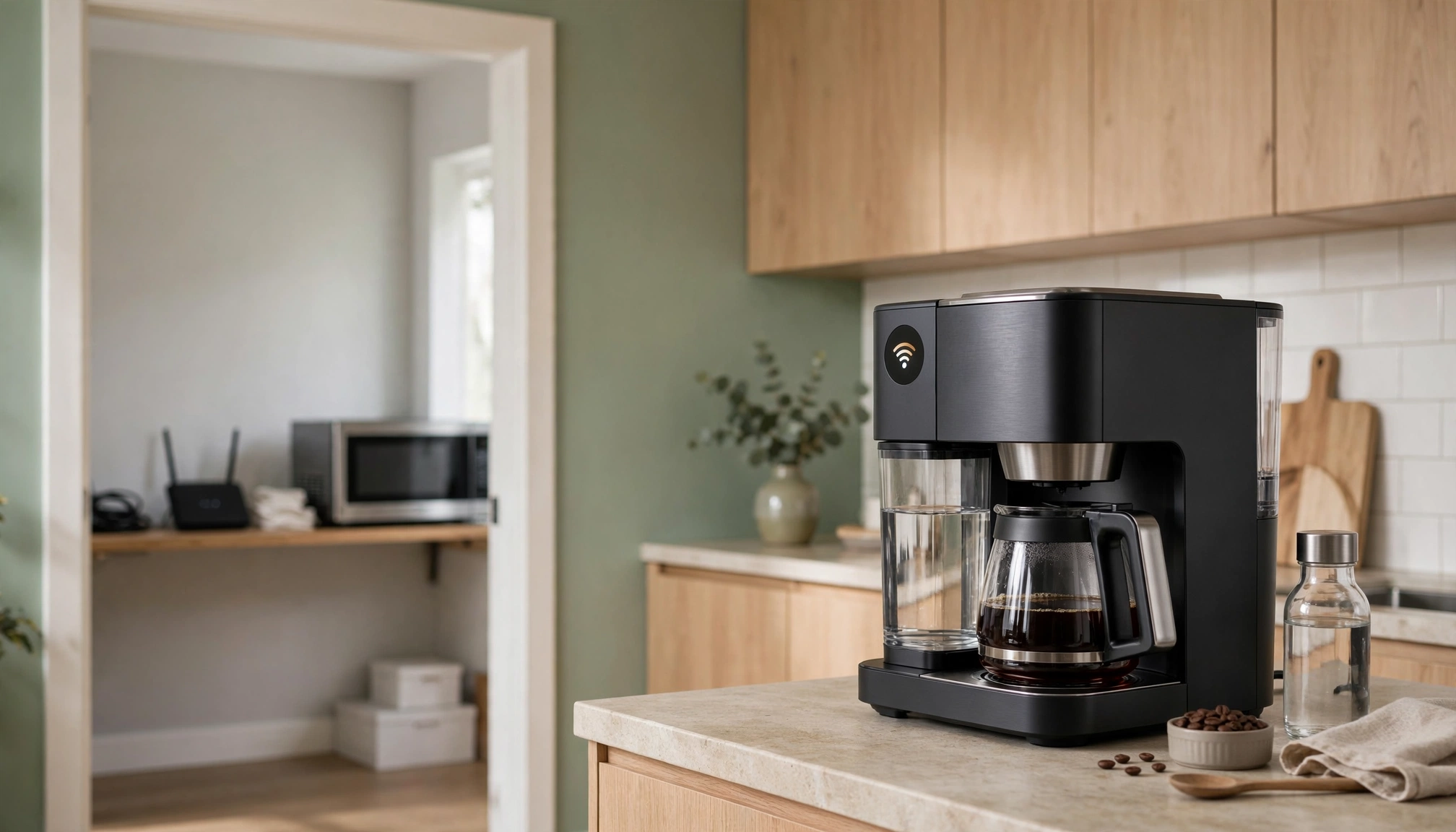
A diagram showing a smart coffee maker struggling to connect to a distant Wi-Fi router, with signal lines fading and being blocked by walls.
Troubleshooting Steps & Solutions
Before you return your coffee maker, systematically work through these solutions.
- Relocate Your Router: Move your router to a central location in your home, away from obstructions like large metal appliances (refrigerators, microwaves) and thick walls. Elevate it if possible.
- Check Signal Strength: Use a Wi-Fi analyzer app (e.g., NetSpot, WiFiman) on your phone near your coffee maker. Aim for -60 dBm or better. If it's worse, you need to improve coverage.
- Optimize 2.4 GHz Channel: Access your router's admin page (usually `192.168.1.1` or `192.168.0.1` in a web browser). Go to Wi-Fi settings for the 2.4 GHz band and manually select channels 1, 6, or 11. Use the analyzer app to find the least congested one.
- Create a Dedicated 2.4 GHz Network: If your router combines 2.4 GHz and 5 GHz, create a separate SSID for the 2.4 GHz band (e.g., "MyHome_2.4GHz"). Connect your coffee maker only to this network.
- Update Firmware:
- Coffee Maker: Check the manufacturer's app or website for updates. Follow their instructions carefully.
- Router: Log into your router's admin page and look for a "Firmware Update" or "System Update" section.
- Reboot Everything: Sometimes a simple power cycle fixes transient issues.
- Unplug your router for 30 seconds, then plug it back in. Wait 5 minutes for it to fully boot.
- Unplug your coffee maker for 30 seconds, then plug it back in.
- Consider a Wi-Fi Extender or Mesh System: If signal strength is still poor, a Wi-Fi extender or, better yet, a mesh Wi-Fi system extends coverage. Mesh systems provide more seamless roaming and better performance than extenders.
- Assign a Static IP Address: In your router's settings, find the "DHCP Reservation" or "Static IP" section. Locate your coffee maker's MAC address (usually found in its app or on a sticker on the device) and assign it a permanent IP address.
- Check Router Settings for Inactivity: Some routers disconnect devices after a period of inactivity. Look for settings like "Client Lease Time" or "Inactivity Timeout" and increase them or disable them for smart devices.
- Reset Coffee Maker Wi-Fi: As a last resort, perform a factory reset of the coffee maker's Wi-Fi settings and re-pair it as if it were new. Consult your coffee maker's manual for specific instructions.
Wi-Fi Performance Comparison Table
| Feature | 2.4 GHz Wi-Fi (Common for Smart Coffee Makers) | 5 GHz Wi-Fi (Faster, Less Interference) | Wi-Fi 6E (Newest, Fastest) |
|---|---|---|---|
| Range | Longer (up to 150 ft indoors) | Shorter (up to 50 ft indoors) | Shorter (similar to 5 GHz) |
| Penetration | Better through walls/objects | Poor through walls/objects | Poor through walls/objects |
| Speed | Slower (up to 150-200 Mbps real-world) | Faster (up to 500-800 Mbps real-world) | Fastest (Multi-Gigabit) |
| Interference | High (crowded band) | Low (less crowded) | Very Low (dedicated 6 GHz) |
| Device Compatibility | High (most smart home devices) | Medium (newer phones, laptops) | Low (very new devices only) |
| Typical Use | Smart home devices, long-range needs | Streaming, gaming, high-bandwidth | Future-proof, high-density |

A person holding a smartphone showing a Wi-Fi analyzer app with signal strength readings and channel usage, standing near a smart coffee maker in a modern kitchen.
Environmental Factors
The physical environment around your coffee maker also plays a role.
- Temperature: The optimal operating temperature for most smart coffee maker Wi-Fi modules is 50°F to 95°F (10°C to 35°C). Extreme heat (e.g., direct sunlight, next to a hot oven) or cold can affect performance.
- Humidity: High humidity