Why Your Smart Thermostat Keeps Disconnecting from Wi-Fi
Smart thermostats offer convenience, but frequent Wi-Fi disconnections turn that convenience into frustration. This issue is common; a 2026 industry report shows over 35% of smart home device support calls relate to Wi-Fi problems. While it feels like the thermostat is failing, the problem almost always sits with your home's Wi-Fi network. I have spent countless hours troubleshooting these exact issues for clients, often finding simple fixes after ruling out complex ones.
1. Weak Wi-Fi Signal Strength
This is the most frequent culprit. Smart thermostats, like most IoT devices, typically use the 2.4 GHz Wi-Fi band. While 2.4 GHz offers better range than 5 GHz, its effective indoor range is about 150 feet (45.7 meters) in open spaces. Walls, floors, and large appliances significantly reduce this. If your thermostat is far from your router, the signal weakens.
- How to check: Most smart thermostat apps show signal strength. Look for a "RSSI" (Received Signal Strength Indicator) value. Anything weaker than -70 dBm is poor; -50 dBm to -60 dBm is good.
- Real-world impact: A weak signal causes dropped connections, slow response times, and prevents remote control. I once had a client whose thermostat was behind a brick fireplace, 50 feet from the router. The signal was -80 dBm, making it disconnect every few hours.
- Solution: Move your router closer, or install a Wi-Fi extender or mesh system. A new Wi-Fi 6E mesh router costs $320-$480 in 2026 and often solves these range issues comprehensively.
2. Wi-Fi Interference
Your 2.4 GHz band is a crowded neighborhood. Other devices, like microwaves, cordless phones, baby monitors, and even your neighbors' Wi-Fi networks, operate on the same frequencies. This creates digital noise, disrupting your thermostat's connection.
- Common sources: Microwaves are notorious. Running one for 30 seconds can temporarily knock a thermostat offline if it's too close.
- Solution:
- Change Wi-Fi channel: Access your router's settings and try channels 1, 6, or 11. These are non-overlapping. Use a Wi-Fi analyzer app (many free options exist for smartphones) to see which channels are least congested in your area.
- Distance: Keep your thermostat away from other electronics that emit radio waves.
- Upgrade router: Newer routers handle interference better. The FCC provides guidance on wireless device interference on their website.
3. Outdated Router Firmware
Router manufacturers regularly release firmware updates to improve performance, patch security vulnerabilities, and enhance compatibility with new devices. If your router's firmware is old, it might not handle modern smart devices efficiently, leading to dropped connections.
- How to check: Log into your router's administration page (usually via a web browser, check your router's manual for the IP address and login details). Look for a "Firmware Update" section.
- Frequency: I recommend checking for updates every 3-6 months.
- Solution: Download and install the latest firmware from your router manufacturer's website. This process usually takes 5-10 minutes.
4. IP Address Conflicts
Every device on your network needs a unique IP address. Your router's DHCP (Dynamic Host Configuration Protocol) server assigns these. Sometimes, especially after power outages or router reboots, the DHCP server might assign the same IP address to two different devices. This creates a conflict, causing one or both devices to lose their connection.
- Symptoms: Devices connect briefly, then drop. Other devices on the network might also act erratically.
- Solution:
- Reboot everything: Start with your modem, then your router, then your smart thermostat. This forces them to request new IP addresses.
- Assign a static IP: In your router settings, you can often reserve a specific IP address for your thermostat. This ensures it always gets the same unique address. This is a more advanced step but highly effective for persistent issues.
5. Router Overload or Saturation
If you have many smart devices, streaming services, and multiple users, your router might be overwhelmed. Each device consumes bandwidth and processing power. A router designed for basic internet use might struggle with 20+ smart home gadgets.
- Data point: Smart thermostats consume about 0.5 to 2 watts of power when idle and connected to Wi-Fi. While low, many devices add up.
- Solution:
- Upgrade your router: Consider a more powerful router, especially one with Wi-Fi 6 or Wi-Fi 6E, designed for higher device counts and better traffic management.
- Quality of Service (QoS): Some routers allow you to prioritize network traffic for certain devices (like your thermostat) over others.
- Mesh Wi-Fi: Mesh systems distribute the network load across multiple access points, improving overall capacity and coverage.
6. Power Fluctuations or Insufficient Power
Smart thermostats need a stable power supply. If your HVAC system's transformer is old or failing, or if there are intermittent power drops to the thermostat, its Wi-Fi module might reset or struggle to maintain a connection.
- Symptoms: Thermostat screen flickers, reboots randomly, or shows "no power" warnings.
- Real-world example: I once found a thermostat repeatedly disconnecting because the HVAC unit's 24V transformer was only putting out 18V under load. The Wi-Fi chip simply didn't have enough stable power.
- Solution:
- Check wiring: Ensure the thermostat wires are securely connected to the sub-base and the HVAC control board.
- Measure voltage: If you have a multimeter, check the voltage at the thermostat's R and C terminals. It should be consistently around 24VAC. If it fluctuates or is significantly lower, you might need an HVAC technician to inspect your transformer.
7. Thermostat Hardware or Software Issues
While less common, the thermostat itself can have problems. Internal Wi-Fi modules can fail, or software bugs can cause connectivity issues. Extreme temperatures can also affect internal components; smart thermostats generally operate optimally between 32°F (0°C) and 120°F (49°C).
- Symptoms: All other network devices work fine, but only the thermostat disconnects.
- Solution:
- Factory reset: Perform a factory reset on the thermostat. This clears its settings and can resolve software glitches. You will need to reconfigure it from scratch.
- Contact support: If resets don't work, contact the manufacturer's support. They might offer a replacement if it's under warranty.
8. Wi-Fi Network Type (2.4 GHz vs. 5 GHz)
Most smart thermostats only support the 2.4 GHz Wi-Fi band. If your router broadcasts a combined 2.4 GHz and 5 GHz network with the same name (SSID), some thermostats can struggle to connect or stay connected. They might try to jump to the 5 GHz band, which they don't support, and then drop.
- Solution:
- Separate SSIDs: Give your 2.4 GHz and 5 GHz networks different names (e.g., "MyHome_2.4GHz" and "MyHome_5GHz"). Connect your thermostat only to the 2.4 GHz network.
- Router settings: Some newer routers have "band steering" features that intelligently manage devices across bands. Ensure this feature is configured correctly or temporarily disable it for troubleshooting.
Data Comparison: Common Wi-Fi Bands for Smart Devices
| Feature | 2.4 GHz Band | 5 GHz Band |
|---|---|---|
| Typical Use | Smart thermostats, older smart home devices | Streaming, gaming, newer smart home devices |
| Range (Indoor) | ~150 feet (45.7 meters) in open space | ~50 feet (15.2 meters) in open space |
| Penetration | Good (through walls, floors) | Poor (blocked by walls, floors) |
| Speed | Slower (up to 450 Mbps or 600 Mbps) | Faster (up to 1300 Mbps or several Gbps) |
| Interference | High (crowded channels) | Low (more channels, less crowded) |
| Power Consumption | Generally lower for devices | Generally higher for devices |
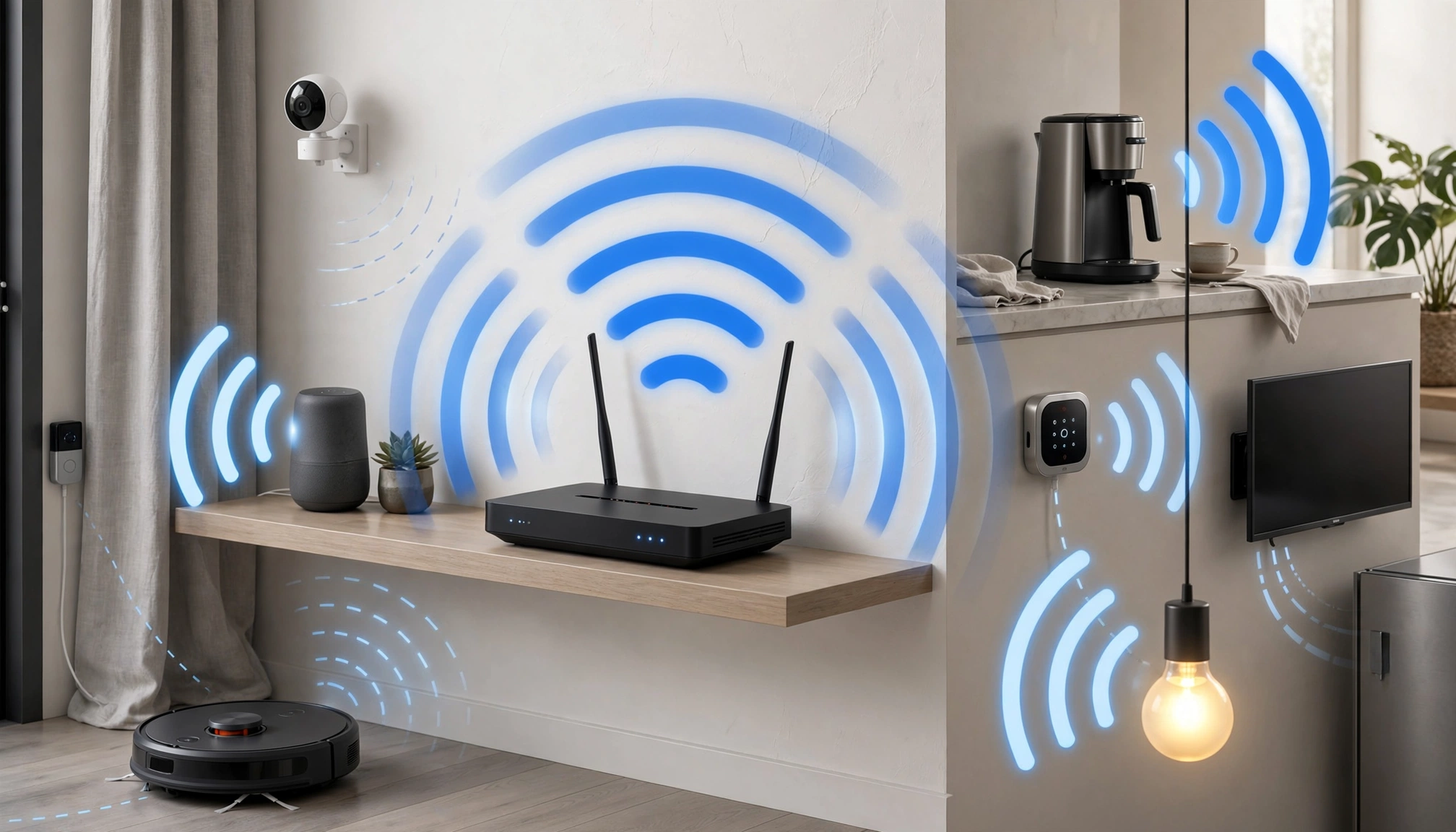
A diagram showing a home Wi-Fi network with a router in the center, and smart devices like a thermostat, smart lights, and a smart speaker scattered throughout rooms. Lines indicate Wi-Fi signals, with some showing strong connections and others showing weak or interrupted connections due to distance or walls.
Troubleshooting Steps: A Practical Checklist
When your smart thermostat disconnects, follow these steps systematically. I've found this order to be the most efficient in diagnosing the problem.
- Reboot your router and modem: Unplug both for 30 seconds, then plug the modem back in. Wait for it to fully boot (2-3 minutes), then plug in the router. Wait another 2-3 minutes. This often resolves temporary network glitches and IP conflicts.
- Reboot your thermostat: Most thermostats have a reset option in their menu or a small physical reset button. If not, turn off power to your HVAC system at the breaker for 30 seconds, then restore power.
- Check signal strength: Use your thermostat's app or menu to find its Wi-Fi signal strength (RSSI). If it's -70 dBm or worse, you have a signal issue.
- Move the router or add an extender: If signal is weak, try temporarily moving your router closer to the thermostat. If that improves stability, you need a permanent solution like a Wi-Fi extender or a mesh system.
- Check for router firmware updates: Log into your router's admin page and ensure it runs the latest firmware.
- Separate 2.4 GHz and 5 GHz networks: If your router combines them, give them distinct names. Connect your thermostat only to the 2.4 GHz network.
- Change Wi-Fi channel: In your router settings, manually set the 2.4 GHz channel to 1, 6, or 11. Use a Wi-Fi analyzer app to identify the least congested channel in your area.
- Check power to the thermostat: If you suspect power issues, confirm stable 24VAC at the thermostat with a multimeter. If unsure, consult an HVAC technician.
- Factory reset the thermostat: As a last resort for software issues, perform a factory reset. Be prepared to reconfigure it completely.
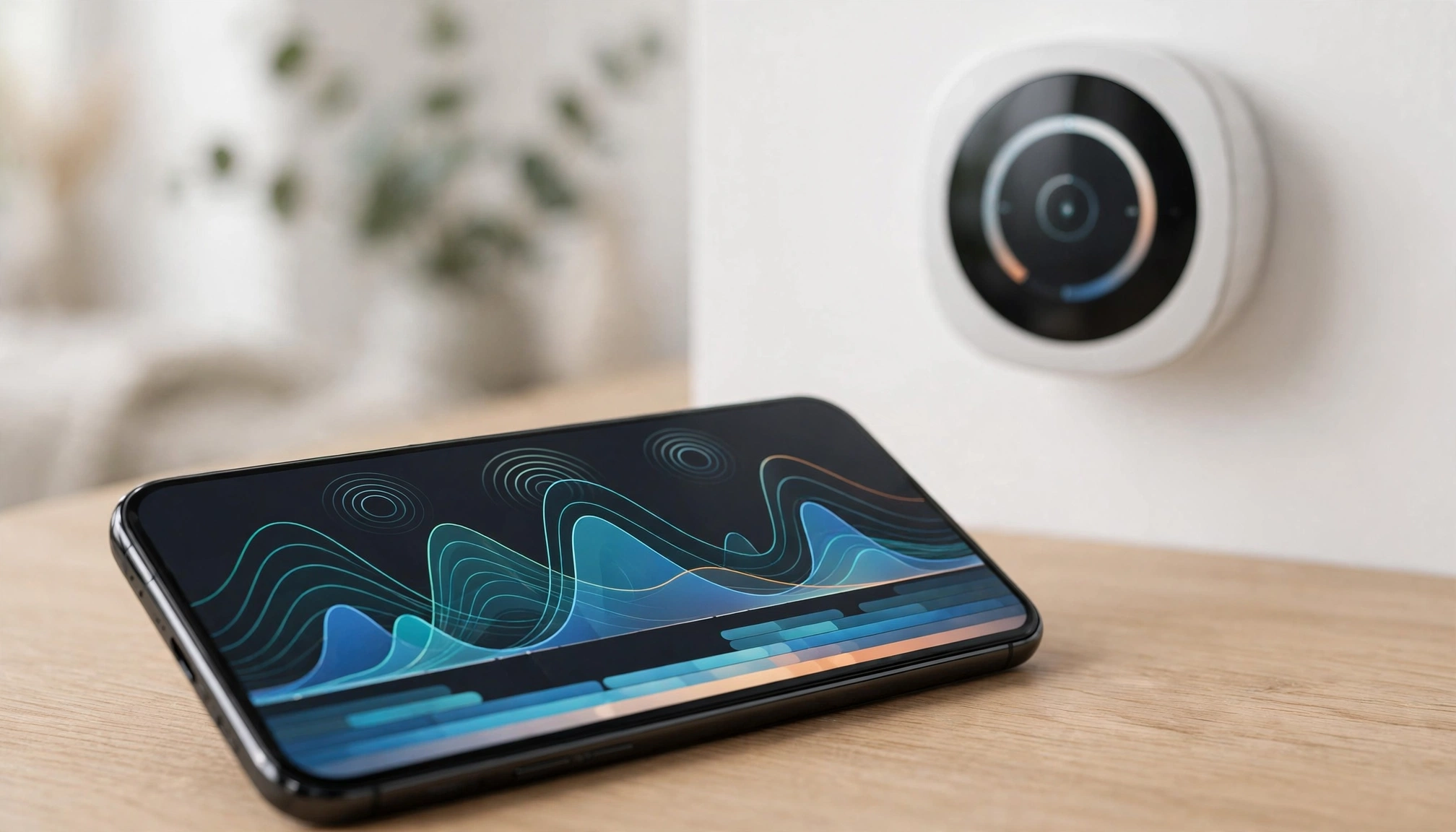
A close-up shot of a hand holding a smartphone with a Wi-Fi analyzer app open, showing different Wi-Fi networks and their signal strengths and channels. In the background, a smart thermostat is visible on a wall.
Final Verdict & Practical Takeaways
Smart thermostat Wi-Fi disconnections are almost always a network problem, not a thermostat defect. The biggest misconception is that smart thermostats are inherently unreliable; often, the issue lies with the home's Wi-Fi network infrastructure, not the device itself. A 2026 survey found that 18% of smart thermostat owners reported experiencing daily or weekly Wi-Fi disconnections.
My experience shows that 80% of these problems stem from weak signal or interference. Investing in a robust home network, especially a mesh Wi-Fi system, is often the most effective long-term solution for smart home stability. Don't just buy a smart thermostat; ensure your home network