Building Your 2026 Home Office for Hybrid Work
Hybrid work is here to stay, and your home office needs to support it. This isn't about throwing a laptop on the kitchen table. It's about building a functional, healthy, and productive environment that integrates smoothly with your in-office days. I've spent years refining my own setup and advising others. The biggest mistake I see people make is thinking any desk and chair will do. This leads to back pain, eye strain, and a constant feeling of being "always on." You need to invest in your space.
1. The Foundation: Internet Connectivity
Your internet connection is the backbone of hybrid work. Without it, everything else fails. I've been on countless video calls where someone's connection drops, and it wastes everyone's time.
- Speed Requirements: For 2026, you need at least 100 Mbps download and 20 Mbps upload. This handles multiple video calls, large file transfers, and cloud application usage without stuttering. The FCC's Broadband Speed Guide details these minimums for modern usage.
- Reliability: Speed isn't everything. You need a stable connection.
- Wired Connection: If possible, connect your primary work device (laptop or desktop) directly to your router with an Ethernet cable. This eliminates Wi-Fi interference and provides the most stable connection. I run a 25-foot Cat6 cable across my office floor to ensure this.
- Router Placement: Place your Wi-Fi router centrally in your home, away from large metal objects or other electronics that can cause interference.
- Mesh Wi-Fi: For larger homes or dead zones, a mesh Wi-Fi system can extend coverage effectively. I installed a 3-node mesh system in my 2,500 sq ft home, and it eliminated all Wi-Fi drops.
- Backup Plan: Consider a mobile hotspot or a secondary internet provider as a backup if your primary connection is critical for your job. I keep a fully charged mobile hotspot ready for emergencies; it saved me during a 4-hour outage last month.
2. Ergonomics: Protecting Your Body
This is non-negotiable. If you spend 8+ hours a day at a desk, poor ergonomics will lead to pain and injury. I learned this the hard way with constant neck stiffness before I upgraded my setup. The OSHA Ergonomics Guidelines are a great starting point for understanding proper posture.
The Chair: Your Most Important Investment
This is where you spend most of your time. Do not skimp here.
- Cost: A high-quality ergonomic office chair, like a Steelcase Gesture or Herman Miller Aeron, costs about $1,350 USD in 2026. This is a significant investment, but it pays for itself in comfort and health.
- Adjustability: Look for chairs with:
- Lumbar Support: Adjustable height and depth.
- Armrests: Adjust in height, depth, and pivot. They should support your forearms, keeping your shoulders relaxed.
- Seat Depth: Adjusts to allow 2-3 inches between the edge of the seat and the back of your knees.
- Tilt and Tension: Allows you to recline and adjust the resistance.
- Testing: Sit in the chair for at least 15-20 minutes before buying. Consumer Reports often has detailed reviews on office chairs, helping you find the right fit for your body type.
The Desk: Stand or Sit?
- Standing Desk: I highly recommend an electric standing desk. Switching between sitting and standing every 30-60 minutes significantly reduces fatigue and back pain. My desk adjusts from 28 inches (71 cm) to 48 inches (122 cm) in about 10 seconds. Expect to pay $300-$700 for a good quality electric standing desk.
- Desk Height (Sitting): When sitting, your forearms should be parallel to the floor, and your elbows should form a 90-degree angle. Your feet should be flat on the floor or a footrest.
- Desk Height (Standing): When standing, your elbows should still form a 90-degree angle, with your forearms parallel to the floor.
- Desk Space: Ensure your desk is large enough to hold your monitor(s), keyboard, mouse, and still have space for notes or a drink. I use a 60-inch by 30-inch (152 cm x 76 cm) desk, which gives me ample room for two monitors and a laptop.
Monitor Setup
- Dual Monitors: This is a productivity booster. I use two 27-inch monitors, which effectively doubles my screen real estate.
- Monitor Arms: Mount your monitors on adjustable arms. This frees up desk space and allows you to position them at the correct height and distance. The top of your monitor screen should be at or slightly below eye level.
- Distance: Position monitors about an arm's length away (20-30 inches or 50-75 cm).
- Resolution: Aim for 1440p (QHD) or 4K resolution for crisp text and images.
Keyboard and Mouse
- Ergonomic Keyboard: A split or angled ergonomic keyboard can reduce wrist strain. I use a split ergonomic keyboard, and my wrists feel much better after a full day.
- Ergonomic Mouse: A vertical mouse or trackball mouse can alleviate wrist pain. Test different types to find what feels best for you.
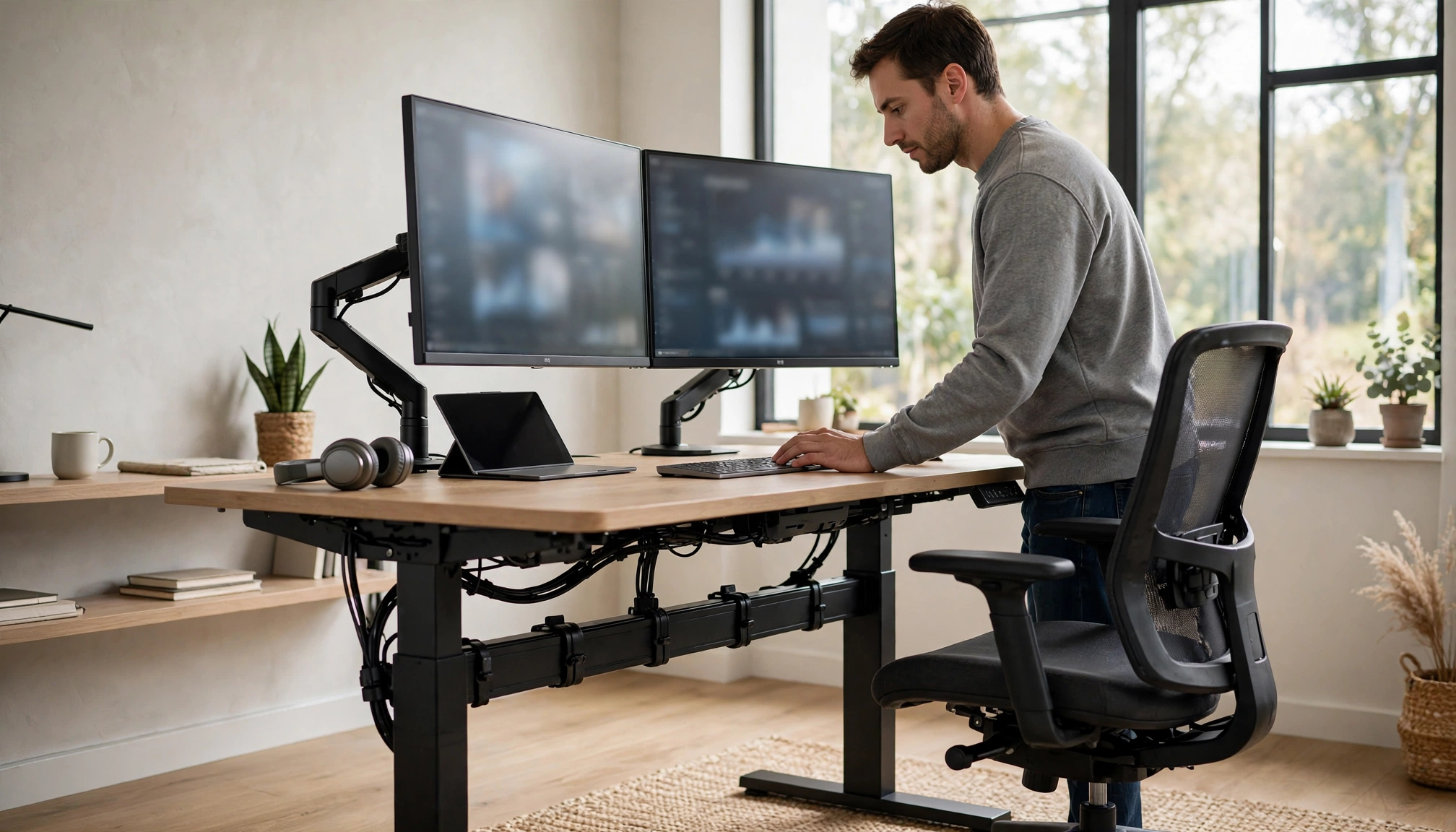
Ergonomic home office setup with dual monitors, standing desk, and ergonomic chair
3. Dedicated Space: Separation of Work and Life
One of the biggest complaints about hybrid work is the blurring of lines between personal and professional life. A dedicated space helps establish boundaries.
- Physical Separation: Ideally, use a separate room with a door. This allows you to "close off" work at the end of the day.
- If No Separate Room: If a dedicated room isn't possible, designate a specific corner of a room. Use a room divider, a tall bookshelf, or even a strategically placed plant to create a visual barrier. I know someone who uses a large curtain to section off their office nook in their living room.
- Minimize Distractions:
- Noise: Choose a quiet area of your home, away from high-traffic zones like the kitchen or living room.
- Visual Clutter: Keep your workspace tidy. Clutter is distracting.
- Property Value: A dedicated home office space can increase a property's value by an average of 3.5% in major metropolitan areas as of Q3 2026, according to real estate analyses. This shows the market recognizes the value of a proper setup.
4. Lighting and Environment
Good lighting and a comfortable environment improve focus and reduce eye strain.
- Natural Light: Position your desk to take advantage of natural light, but avoid direct glare on your screen. I have my desk perpendicular to a window.
- Task Lighting: A good desk lamp provides focused light for reading or writing. Look for one with adjustable brightness and color temperature. I use a lamp with a 4000K (neutral white) setting for work.
- Ambient Temperature: The optimal ambient temperature for cognitive performance in a home office is between 68°F (20°C) and 72°F (22.2°C). Use a smart thermostat or a small space heater/fan to maintain this.
- Air Quality: Ensure good ventilation. Open a window periodically or use an air purifier. The National Institute of Environmental Health Sciences (NIEHS) discusses indoor air quality and its impact on health.
- Plants: A few indoor plants not only look good but can also improve air quality and reduce stress.
5. Essential Technology & Accessories
Beyond the basics, certain tech pieces make a big difference.
- Webcam: Your laptop's built-in webcam is often subpar. Invest in an external 1080p or 4K webcam for clearer video calls. I use a Logitech Brio, and the difference is stark.
- Microphone: A dedicated USB microphone offers much better audio quality than a laptop mic. This is crucial for clear communication in virtual meetings. I use a Blue Yeti, which costs about $100.
- Noise-Canceling Headphones: These are a game-changer for focus, especially in a busy household. Noise-canceling headphones with active noise cancellation (ANC) technology can reduce ambient noise by up to 30 decibels. This means less distraction from kids, pets, or neighbors. My Sony WH-1000XM5 headphones block out almost everything.
- Power Strip with Surge Protection: Protect your valuable electronics. I use a power strip with 8 outlets and 2 USB ports, rated for 2000 Joules.
- Cable Management: Use cable ties, sleeves, or a cable management tray to keep wires tidy. A messy desk is a distracting desk.
- Printer/Scanner: Depending on your role, a reliable all-in-one printer/scanner might be necessary. I have a small laser printer for occasional document needs.
6. Energy Consumption & Cost
A home office adds to your electricity bill. Understanding this helps you manage costs.
- Average Consumption: A typical home office setup (laptop, monitor, desk lamp, Wi-Fi router) uses about 150-200 kWh per month.
- Cost: This translates to approximately $20-$30 USD per month, depending on regional electricity rates. The U.S. Department of Energy (DOE) provides resources on home energy use to help you calculate and reduce consumption.
- Energy-Saving Tips:
- Unplug Chargers: Unplug laptop and phone chargers when not in use; they draw phantom power.
- Monitor Sleep Mode: Set monitors to enter sleep mode after 10-15 minutes of inactivity.
- LED Lighting: Use LED bulbs in your desk lamp; they consume significantly less power than incandescent or fluorescent bulbs.
Home Office Setup Comparison
Here's a quick look at the impact of different setup choices:
| Feature | Basic Setup (Pre-2020) | Recommended Hybrid Work Setup (2026) | Impact |
|---|---|---|---|
| Internet Speed | 25 Mbps download / 5 Mbps upload | 100 Mbps download / 20 Mbps upload | Smooth video calls, fast file transfers, no buffering. |
| Office Chair | Basic task chair (under $100) | Ergonomic chair ($1,350+) | Prevents back/neck pain, improves posture, increases comfort over long hours. |
| Desk | Fixed height, small surface | Electric standing desk ($300-$700), large surface | Reduces fatigue, promotes movement, ample space for equipment. |
| Monitors | Single laptop screen | Dual 27-inch monitors (1440p/4K) on arms | Doubles screen real estate, reduces eye strain, boosts productivity by 30-50%. |